Participate in an event
How-to | Last updated: 3/4/2026 | Learn how to participate an Incentives Campaign
Incentives Campaigns (like Best Customer Communications (BCC Best Customer Communications) Loyalty Events and Incentives) are created and curated by Kroger. These opportunities contain multiple nominations and coupons from many different companies.
You can use these nominations and coupons to engage Kroger customers via hyper-personalized tactics that are uniquely targeted to reach a varied mix of current brand buyers Of the households being recommended for the campaign, the amount of money households are spending on the promoted brand, compared to an average brand household buyer and relevant acquisition households.
Select Participate in a BCC event
-
From either 84.51° Prism or the BCC Nominations dashboard, click Create.
-
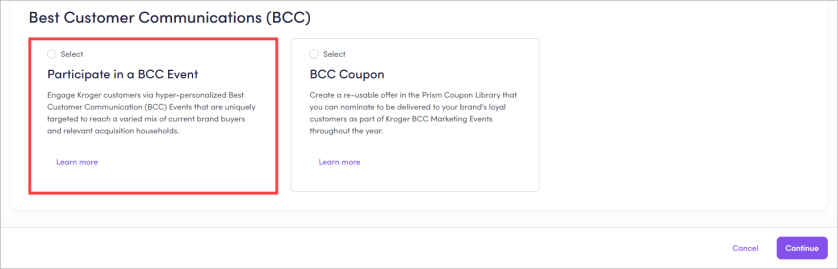
Scroll to the Best Customer Communications (BCC) section.
-
Select the Participate in a BCC event card.
-
Click Continue.
Enter Nomination Details
If you want to nominate (or "pool") multiple coupons together, the information below is for the nomination as a whole, NOT for individual coupons.
You'll enter specific information for each coupon later.
-
If you have multiple clients, you may need to enter and select the Client name in the field to open additional nomination details fields.
For most users, the Client name is automatically added based on your log-in information.
-
Enter the Total Maximum Circulation The number of households where the coupon is sent..
The Total Maximum Circulation is for the nomination as a whole. If you're using multiple coupons for the nomination, the total circulation of all coupons combined must not exceed the Nomination's Estimated Allocation Maximum.
-
Select Yes or No to answer, "Is an agency involved in this nomination?".
-
If Yes:
-
Select Yes or No to answer, "Is the Agency being billed for this nomination?".
-
Enter or use the dropdown to select which Agency is involved.
-
Select Yes or No to answer, "Will the agency issue an IO for the nomination?".
-
-
If No, continue to the next question.
-
-
Enter and select an Event for your nomination.
You can search for Events, as well as filter by Event Type or Year.
-
If prompted, select Yes or No to answer, whether you want a Boost Exclusive Nomination?
-
Click Next: Add Coupons.
Or, click Save and Add Coupons Later to save your nomination and add coupons later.
Select Coupons to Nominate
You have two (2) options for coupons.
You can:
-
Create a new coupon.
To learn how, see Create a new coupon.
-
Select an existing coupon from the Coupon Library.
To learn how, see Add coupon from your Coupon Library.
Modify Contacts
From the Nominations Dashboard, click Contacts to modify (assign, edit, and remove) contacts as needed.
Assign a contact
-
Click the ellipsis (
 ) on the contact card (for example, Primary Contact) you want to add.
 -
Click Edit Contact.
-
Select the person you want to assign from the list of existing contacts.
If you can't find the person, you can create a new contact.
-
Repeat for each required contact.
Edit a contact
-
Click the ellipsis (
) on the contact card (for example, Primary Contact) you want to edit. -
Click Edit Contact.
-
Click the edit icon (
 ).
). -
Update the required contact information.
-
Click Save.
Additionally, you can update a contact once and apply those updates across multiple nominations.
To learn how, see Update contacts across nominations.
Once you click Submit for Approval, 84.51° Prism automatically begins to review and approve most BCC nominations.
Any Boost nominations are not eligible for auto-approval and must be reviewed by Client Success Activation.
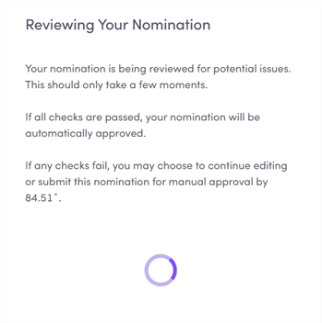
This auto approval process checks your nomination against set approval criteria:
|
Approval criteria |
Description |
|---|---|
|
Insufficient Targeting UPC Universal Product Code Sales |
|
|
Nomination / Offer Circulation |
Sum of circulation for all offers must match the total circulation of the Nomination |
|
Exceeds Maximum Redemption UPCs |
Offers must have less than 200 UPCs |
|
Coupon Approval Status |
Nominated Sums total nominated value from plan groups, aggregated based on the view or report in which it appears (includes all except Boost). offers must have an "Approved" status in Coupon Library |
|
Redemption UPC Overlap |
Offers cannot share more than 75% of their UPCs with one (1) or more other offers in the same event |
|
Multiple Manufacturers |
Offers cannot include UPCs associated with more than one (1) manufacturer |
|
Multiple Commodities |
Offers cannot include:
|
|
Past On-Shelf Date |
New Product UPC On-Shelf Date must be after the current date |
|
Discount |
|
|
K-Number |
All CPG Consumer Packaged Goods coupons must have a K-number |
|
Coupon Number |
All CPG coupons must have a coupon number that is unique within the event These numbers are automatically assigned by 84.51° Prism, so this criteria prevents auto approval if 84.51° Prism experiences an error when assigning a coupon number. |
Add a new role
-
Click Add Role.
-
Select the role you want to add from the dropdown menu (for example, Secondary Contact).
-
Select the person you want to add from the list of existing contacts.
If you can't find the person, you can create a new contact.
Remove a role
-
Click the ellipsis (
) on the contact card. -
Click Remove Role.
Submit for Approval
After finalizing your all Nomination Details and Contacts, click Submit for Approval.
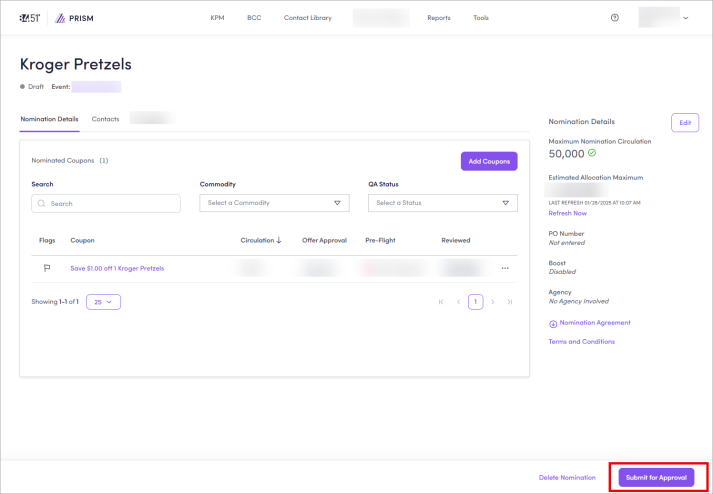
If you haven't done so already, download the Nomination Agreement.
You may also be prompted to accept the Terms and Conditions, if you haven't already done so.
Approval criteria
Nomination approved
If all requirements are met, your nomination is approved.

You'll also receive a confirmation email when your nomination is approved.
Nomination not approved
If your nomination has any outstanding issues, you'll see them listed for your review.
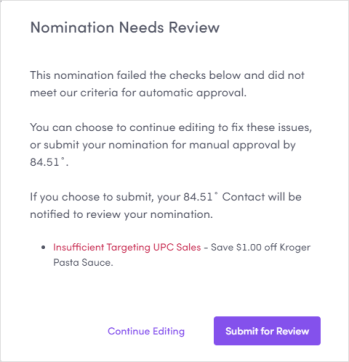
If your nomination has unmet criteria / outstanding issues, you have two (2) options.
-
Option 1: Fix the issues and resubmit for auto-approval
-
Option 2: Ignore the issues and submit for manual approval
Re-submit for auto approval
-
In the Nomination Needs Review window, click Continue Editing.
-
Fix issues (see table below for those that you should be able to fix on your own).
-
Insufficient Targeting Sales UPCs
-
Nomination / Offer Circulation
-
Multiple Manufacturers
-
Redemption UPC Overlap
-
Discount
-
-
Re-submit your nomination.
-
Repeat these steps as needed until the nomination is successfully auto approved.
While you can fix certain issues, some issues need to be fixed by Client Success Activation. If you are unsure how to fix any of the issues, contact Client Success Activation for help.
You'll receive a confirmation email when your nomination is approved.
Submit for manual approval
-
In the Nomination Needs Review window, click Submit for Review.
This action sends the nomination to your 84.51° contact for approval.
-
If any edits are required, your 84.51° contact will work with you to complete your nomination.
You'll receive a confirmation email when your nomination is approved.
Submit a creative
After your nomination is approved, you will need to submit your creative. Depending on your event, you'll have different creative requirements and upload locations.
Loyal Customer Mailer (LCM)
|
84.51° Prism Learning Center resources |
Downloadable resources |
|---|---|
|
For creative specifications and templates for all channels, see Kroger Precision Marketing - Creative Specs and Policy Documents. |
MyMagazine
|
84.51° Prism Learning Center resources |
Downloadable resources |
|---|---|
|
For creative specifications and templates for all channels, see Kroger Precision Marketing - Creative Specs and Policy Documents. |
Contact your Incentives Account Manager with any questions or for help with your creative.
View performance
Once your Incentives Campaign has ended, you may want to view it's performance in the Report Center.
You may want to look at specific metrics, including, but not limited to:
-
aROAS Attributable Return on Ad Spend — Helps to gauge the return you received for your investment. It doesn't factor in whether the nomination or coupon truly affected customer behavior. You could also use aROAS as a comparison to Sales Uplift.
-
iROAS Incremental Return on Ad Spend — Helps to gauge the incremental return you received for your investment. This metric only factors the sales that were determined to be incremental based on customers seeing the ad.
-
Redemption Cost — Helps to understand total dollars spent on coupon redemption for a Campaign, which gets factored into the ROI Return on Investment.
-
Total Units — Helps you see what types of units (like multi-pack or singles) a customer is purchasing. For example, if Sales Uplift was High but Total Units was Low, then customers are probably buying more expensive units.
-
Total Visits — Helps you see if households are making multiple trips or buying in bulk (like multiples per basket).
To learn how, see View Incentives Campaign performance.
Related topics
Want to learn more about this topic? See these related topics:
Learn more
Explore other sections in the Learning Center to learn more about 84.51° Prism:
 Go to
Go to