Use the Contact Library
How-to | Last updated: 11/24/2025 | Learn how to use the Contact Library
In the Contact Library, you can create, save, and edit all of your contacts to use across your Kroger Precision Marketing (KPM Kroger Precision Marketing) Managed Service and Incentives Campaigns.
For instructions on how to use these contacts within your Campaigns, see:
-
Modify Contacts (in Incentives Campaigns)
-
Modify Contacts (in Managed Service Campaigns)
Access Contact Library
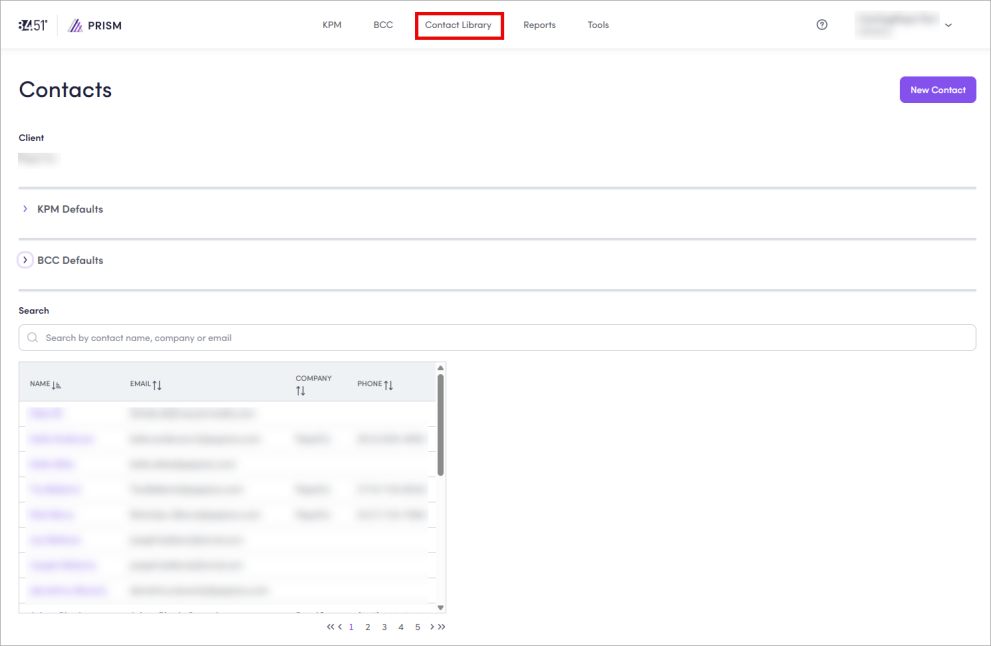
To access Contact Library from 84.51° Prism, click Contact Library.
Add default contacts
Use the Contact Library to set default contacts for your Campaigns. These defaults will be automatically assigned to their roles when you create a new Campaign.
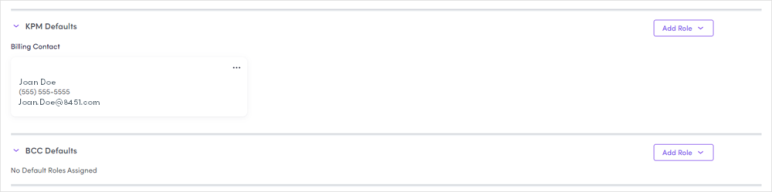
Changing already-set default contacts will change your default contact for ALL of your company's or Agency's contacts for ALL Campaigns.
You can still edit contacts within individual Campaigns to someone other than your default.
In either KPM Defaults or BCC Best Customer Communications Defaults:
-
Click Add Role to create a new contact card.
-
Select the role you want to add as a default.
-
From the list, select the contact you want for the default.
Or, click New Contact to create a new contact.
After selecting or creating a contact, the default contact for that role is automatically assigned in that role for new Campaigns/nominations.
Assign multiple role defaults to a contact
You can view where a contact is used as a default as well as assign a contact to multiple role defaults.
-
Use the search bar or scroll to find your desired contact.
-
Click the contact to see their details.
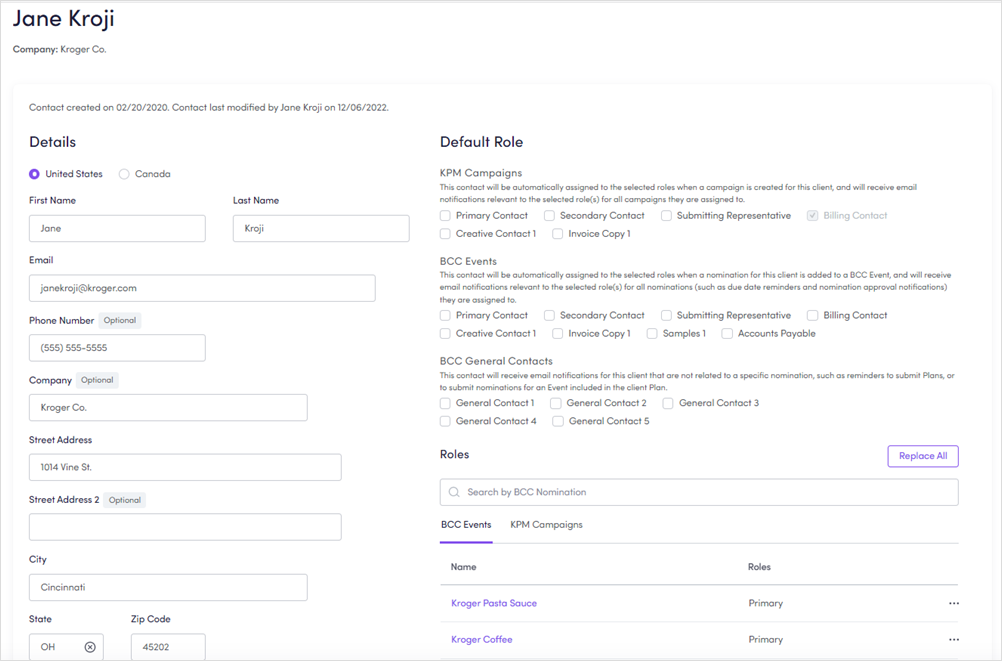
On the contact's details page, you can see which roles this contact is set as default for, as well as any Campaigns where the role is active.
-
Select any default roles you want for this contact.
-
Click Save.
Change a default contact
-
Find and select the contact you want to edit.
-
Click the ellipsis (
 ) for the contact you want to change, then click Edit.
 -
Select the new contact you want for the default.
Or, click New Contact to create a new contact.
-
Click the edit icon (
 ).
). -
Update any contact details.
-
Click Save.
Remove a default contact role
Click the ellipsis ()for the contact you want to remove, then click Remove Role.
Create new contacts
-
Click New Contact.
-
Enter the new contact's details.
First Name, Last Name, Email, Street Address, City, State, and Zip Code are all required fields.
No two (2) contacts can share the same full name and email.
-
Click Save.
Edit contacts
-
Use the search bar or scroll to find the contact you want to edit.
-
Click the contact to view it's details.
-
Update any contact details and/or assign any default roles.
-
Click Save.
Archive contacts
If a contact is used in an active Campaign, it must be removed before you can archive it.
-
Nominations are active up to 26 weeks after the event's in-home date.
-
Campaigns are active up until the Campaign is approved.
-
Use the search bar or scroll to find the contact you want to archive.
-
Click the contact to view it's details.
-
Click Archive.
-
Click Archive to confirm.
This action cannot be undone. Archiving a contact removes the contact from roles that they are associated within 84.51° Prism.
You may want to consider changing default roles before archiving this contact.
Related topics
Want to learn more about this topic? See these related topics:
Learn more
Explore other sections in the Learning Center to learn more about 84.51° Prism:
 Go to
Go to