Use the Coupon Library
How-to | Last updated: 4/16/2026 | Learn how to create and manage coupons in the Coupon Library
In the Coupon Library, you can manage (create, edit, and delete coupons / variants) for your Managed Service and Incentives Campaigns.
At the top of each coupon creation page is the Coupon Stepper, a step-by-step representation of your progress in the coupon creation process.

As you progress through coupon creation, each completed step has a check mark.
You can click the completed steps to go back to that page if you need to change any information.
Access Coupon Library
-
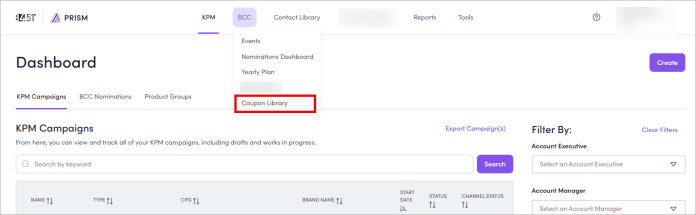
From 84.51° Prism, click BCC Best Customer Communications.
-
Select Coupon Library.
Create a new coupon
-
Click Create New Coupon.
You can also create a coupon by clicking Create from either the Home or BCC Nominations dashboards.
-
Select a card to choose the Coupon Type you want to create.
Depending on your nomination and/or Campaign, some coupon types may not be available.
Coupon Type
Description
-
A type of product specific offer funded by the manufacturer or Kroger.
-
Receive a specific dollar amount off a specified product (for example, "Save $1.00 off 1 Simple Truth Lunch Kit").
Free Product
-
A type of Kroger or CPG Consumer Packaged Goods product offer with no purchase requirement.
-
Receive a 100% discount off on a specific product with no purchase requirements (for example, "Receive 1 Simple Truth Lunch Kit free").
Buy X, Get X
-
A type of high value offer funded by Kroger for selective use.
-
Get a specific amount of a Free Product when you purchase one (1) or more of the same product (for example, "Buy 2 Simple Truth Lunch Kits, Get 1 FREE").
Buy X, Get Y Free
-
A type of product specific offer funded by the manufacturer or Kroger.
-
Purchase an item and get another item free (for example, "Buy 2 Simple Truth pastas, get a Simple Truth Pasta Sauce FREE")
Buy X, Get Y Money Off
-
A type of product specific offer funded by the manufacturer or Kroger.
-
Purchase an item, get money off a different item (for example, "Buy 2 Kroger Cereal, get $1.00 off Kroger milk")
-
-
Enter your Coupon Details.
The Account Name and unique K-Number are pre-populated for you regardless of what coupon type you select.
Depending on your coupon type, some Coupon Details are not applicable (—).
-
Enter the Discount Value The amount of money saved by using this coupon in the empty field.
-
(Optional) Enter any Redemption Exclusions.
-
Enter or use the picker (-/+) to select the Purchase Quantity The quantity the customer needs to purchase to redeem the coupon..
-
Enter the Lowest Retail Selling Price (RSP) The average retail price for all products across this coupon. in the empty field.
-
Enter the Brand Name in the empty field.
-
(Optional) Enter an Item Description.
-
Enter or use the picker (-/+) to select the Purchase Quantity The quantity the customer needs to purchase to redeem the coupon..
-
Enter the Lowest Retail Selling Price (RSP Retail Sale Price) in the empty field.
-
Enter the Brand Name in the empty field.
-
(Optional) Enter an Item Description.
-
(Optional) Enter any Exclusions.
-
Enter or use the picker (-/+) to select the Purchase Quantity The quantity the customer needs to purchase to redeem the coupon..
-
Enter the Lowest Retail Selling Price (RSP) in the empty field.
-
Enter the Brand Name in the empty field.
-
(Optional) Enter an Item Description.
-
(Optional) Enter any Exclusions.
-
Enter or use the picker (-/+) to select the Purchase Quantity The quantity the customer needs to purchase to redeem the coupon..
-
Enter the Lowest Retail Selling Price (RSP) in the empty field.
-
Enter the Brand Name in the empty field.
-
(Optional) Enter an Item Description.
-
(Optional) Enter any Exclusions.
-
Enter or use the picker (-/+) to select the Get Item Quantity.
-
Enter the Lowest Retail Selling Price (RSP) in the empty field.
-
Enter the Brand Name in the empty field.
-
(Optional) Enter an Item Description.
-
(Optional) Enter any Exclusions.
-
Enter or use the picker (-/+) to select the Get Item Quantity.
-
Enter the Lowest Retail Selling Price (RSP) in the empty field.
-
Enter the Brand Name in the empty field.
-
(Optional) Enter an Item Description.
-
Enter or use the picker (-/+) to select the Get Item Quantity.
-
Enter the Lowest Retail Selling Price (RSP) in the empty field.
-
Enter the Brand Name in the empty field.
-
(Optional) Enter an Item Description.
-
Enter or use the picker (-/+) to select the Get Item Quantity.
-
Enter the Lowest Retail Selling Price (RSP) in the empty field.
-
Enter the Brand Name in the empty field.
-
(Optional) Enter an Item Description.
-
Enter the Discount Value The amount of money saved by using this coupon in the empty field.
-
(Optional) Enter any Exclusions.
-
Select Yes or No to answer, "Does this coupon need alternate packshots or coupon wording for certain divisions?".
-
If Yes, click Edit to set up this alternate group and divisions.
-
Enter a Group Name and select which divisions need alternate packshots or coupon wording.
-
Click Save Group.
-
Repeat this process to create as many alternate groups as you need.
-
Click Next.
|
|
Money Off |
Free Product |
Buy X, Get X |
Buy X, Get Y Free |
Buy X, Get Y Money Off |
|---|---|---|---|---|---|
|
Discount Details |
|
— |
— |
— |
— |
|
Purchase Requirement |
|
— |
|
|
|
|
Get Item Reward |
— |
|
|
|
|
|
Division Differences |
|
— |
— |
||
Add UPCs
-
Select a time frame (for example, Last 26 weeks).
-
Click Add UPCs Universal Product Codes to select a method for adding UPCs Universal Product Code.
-
Find specific brands by their CPG (like Simple Truth within The Kroger Co.)
-
Use when you want to add an entire brand to your coupon to ensure everything tied to a brand is captured; good for portfolio activations
-
Click through the Kroger hierarchy until you reach the desired level (like The Kroger Co. > The Kroger Co. > Simple Truth).
-
Click the checkbox next to the brand you want to add.
The summary box on the left confirms the number of UPCs in the selected brand.
-
Use when you want to capture all UPCs in a specific category for your coupon; it's helpful to have knowledge of the Kroger hierarchy when using this option
-
Click through the Kroger hierarchy until you reach the desired level (like All > Grocery > Groc-All Other > Dry Noodles and Pasta).
-
Click the checkbox next to the group of products you want to add.
-
Find UPCs with keywords (like Kroger Pasta Sauce)
-
Use when you don't have UPCs on hand, but know what product you are looking for or when you want to include pack sizes (like six (6) pack Sprite)
-
Enter a search term for the UPC. 84.51° Prism searches for the search term in the UPC description and returns results accordingly.
-
Select all the UPCs you want to add.
-
Copy and paste your UPCs directly into 84.51° Prism
-
Use when you have a prepared list of product UPCs
-
Enter (or copy / paste) your 13-digit UPCs.
-
Click Validate UPCs.
-
Select all the UPCs you want to add from each column (Matching UPCs All UPCs matching what you entered/pasted, Alternate UPCs UPCs that you entered / pasted that are found when dropping the check digit (the last number of the UPC)., and/or Not Found UPCs UPCs that you entered/pasted that were not found. If these are new products, they may not validate, but you should still include them.).
-
Add UPCs from a previously saved Product Group
-
Create a new Product Group
-
Use when you have a group of frequently used UPCs
-
Search for your Product Groups by entering a search term.
If you don't have any Product Groups or want to create a new one, click Create Product Group.
To learn how, see Create and modify Product Groups.
-
Select the Product Group(s) you want to add.
-
Click Next to save your selected UPCs.
-
Enter Purchase UPC Product Attributes.
-
Select an answer to "What kind of products are redeemable?".
-
Select any attributes that apply to your select UPCs.
If choosing Sensitive, you can also indicate if products are Extra Sensitive or Age / Gender Specific.
-
-
If prompted, select an answer to "Is this coupon redeemable on any products that are new, seasonal to Kroger, or recently on-shelf in that 30 days?".
If Yes, use the calender to add the On-Shelf Date.
-
Review your Purchase UPCs.
If you need to edit UPCs, click Purchase UPCs in the Coupon Stepper.
-
Review Division Penetration.
Those UPCs with sufficient penetration are highlighted in green.
-
Click Next.
|
Method |
Use Case |
Instructions |
|---|---|---|
|
CPG to Brand Drilldown |
|
|
|
Location in Hierarchy |
|
|
|
UPC Description Search |
|
|
|
Manual Entry |
|
|
|
Product Groups |
|
|
Review Summary
-
Click each section to review the details.
-
Click
 next to the section title to make any edits.
 -
(Optional) Enter any Tags to your coupon.
Tags are a way to filter your coupons on the Coupon Library dashboard.
-
When ready, click Create Coupon.
Once complete, the new coupon appears in your Coupon Library with a Pending Review status.
Edit a coupon
If you update UPCs for a coupon, those changes will affect:
-
Any instance where that coupon is being used in an event that is still open for nominations.
-
Any subsequent events where the coupon is used.
UPCs will NOT be updated for events that are In Progress or Closed for nominations.
-
On the Coupon Library dashboard, click the ellipses (
 ) for your coupon, then select Edit Coupon.
 -
Find the sections you want to edit and follow the directions for each one.
-
When finished, click Save Coupon.
Delete a coupon
You can only delete coupons that are:
-
Pending review.
-
Not being used in any current nominations.
-
On the Coupon Library dashboard, click the ellipses (
) for your coupon. -
Select Delete Coupon.
This action removes the coupon from your Coupon Library.
Create a coupon variant
If you want to create a new coupon from an existing coupon with different redeeming values, you can create a variant.
-
On the Coupon Library dashboard, click the ellipses (
) for your coupon. -
Select Create a Variant.
-
Enter the updated information for the new coupon variant.
There may be variants that already exist in your Coupon Library. Click the Review button in the Create Variant window to view your possible duplicate variant coupons.
-
When finished, click Create Variant.
Add coupon from your Coupon Library
-
Find and select the coupon(s) you want to nominate.
You can search for coupons by UPC or keyword.
You can select multiple coupons for inclusion.
-
Click Save.
Related topics
Want to learn more about this topic? See these related topics:
Learn more
Explore other sections in the Learning Center to learn more about 84.51° Prism:
 Go to
Go to