Create and modify Product Groups
How-to | Last updated: 6/8/2026 | Learn how to create and modify Product Groups
Product Groups are collections of UPCs Universal Product Codes within 84.51° Prism. These collections can be your most frequently used UPCs Universal Product Code or similar UPCs that can then be used in your Campaigns and coupons.
Access Product Group Creator
-
From 84.51° Prism, click Tools.
-
Select Product Group Creator.
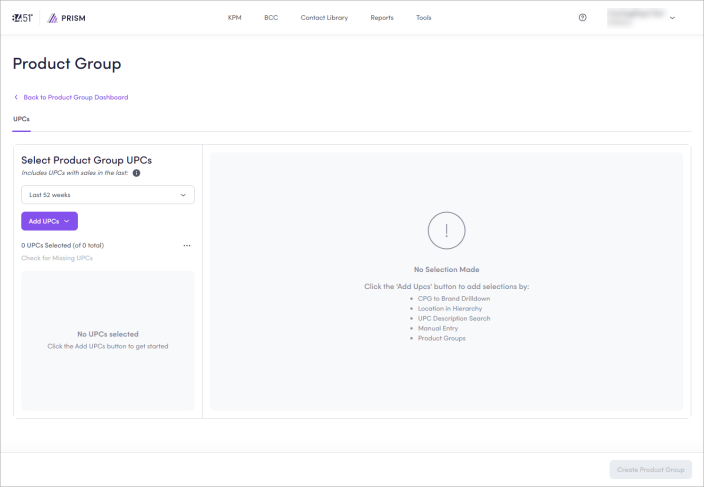
Create a Product Group
-
Select a time frame (for example, Last 52 weeks).
-
Click Add UPCs.
For full instructions on each method, see Add UPCs.
-
Click Create Product Group.
-
If prompted, review any missing UPCs.
You can also check this beforehand by clicking Check for Missing UPCs.
-
(Optional) Click View Division Penetration to see division penetration information about the selected UPCs.
From here, you can also Download Reports (for example, Store Level Penetration).
-
Enter a descriptive, unique Product Group Name (for example, Featured UPCs – Brand).
-
(Optional) Enter a keyword tag to tag your Product Group for search capabilities.
-
Click Add Tag to save your tag.
You can add more than one (1) tag to your Product Group.
-
Click Save Product Group.
Once complete, your Product Group appears on your Product Groups dashboard.
Modify Product Group
From the Product Groups dashboard, you can modify (edit, export, and delete) Product Groups.
Edit a Product Group
-
Find the Product Group you want to edit.
-
Click the ellipsis (
 ), then Edit.
 -
Update your Product Group with your desired changes.
-
Click Update Product Group.
-
Update the Product Group Name and Tags, if desired.
-
Click Save Product Group.
Delete a Product Group
-
Find the Product Group you want to delete.
-
Click the ellipsis (
), then Delete. -
Click Yes, Delete It.
Export a Product Group
-
Find the Product Group you want to export.
-
Click the ellipsis (
), then Export.
Your Product Group is downloaded as an Excel worksheet.
View UPCs
-
Find the Product Group with the UPCs you want to see.
-
Click the ellipsis (
), then View UPCs.
This action generates a UPC list including the UPC 13-digit number, a description, hierarchy information, brand, and last scan date.
From here, you can Copy All UPCs or Edit UPCs.
Copy UPCs
-
Find the Product Group with the UPCs you want to copy.
-
Click the ellipsis (
), then Copy UPCs.
All UPCs in this Product Group are now copied and can be pasted wherever you need them (like for Manual Entry in a Campaign).
You can also copy UPCs by clicking Copy All UPCs when viewing UPCs.
Copy selected UPCs
-
Find the Product Group with the UPCs you want to copy.
-
Click the ellipsis (
), then View UPCs. -
Select which UPCs you want to copy from the list.
-
Click Copy Selected UPCs.
The selected UPCs are now copied and can be pasted wherever you need them (like for Manual Entry in a Campaign).
Related topics
Want to learn more about this topic? See these related topics:
Learn more
Explore other sections in the Learning Center to learn more about 84.51° Prism:
 Go to
Go to