Use Audience Segments
How-to | Last updated: 11/5/2025 | Learn how to use Audience Segments in your Campaigns
You can create and/or use Audience Segments either directly in your Campaigns or from the Audience Library. In the Audience Library, you can also modify (edit, duplicate, delete, and save) your Custom Audience Segments.
You can also view all KPM Kroger Precision Marketing Pre-Built Segments.
KPM Pre-Built Segments cannot be edited or deleted.
Access Audience Library
-
From 84.51° Prism, click Tools.
-
Select Audience Library.

Create Custom Audience Segments
-
Click Create Audience Segment.
-
Give your segment a clear and succinct Audience Segment Name (for example, "Heavy Soft Drink Category Buyers").
-
Add a detailed Audience Segment Description with relevant details (for example, "Households buying at least 50 units of soft drink products in the last six (6) months").
-
Click Select to choose a Segment Type.
-
Follow the instructions outlined in the table for each type.
-
Select Share of Requirements The share of sales received from Major Brands or Parent Companies Product Hierarchy.
-
Enter Max Share of Requirements (%).
-
Click Select Products to select Shopped Products (Product UPCs Universal Product Codes within the brands or commodities households switched between).
-
Select the Modality.
-
Select the Time Period of the dateset.
-
Select Shopping Behavior Type.
-
Click Select Products to select Shopped Products (Product UPCs used to identify households).
-
Depending on your selection above, you’ll enter UPCs for X Products and/or Y Products.
-
-
Select the Modality.
-
Select the Purchase Period when households purchased the products.
-
Select a Shopping Behavior.
-
Select a Based On cutoff metric for the selected shopping behavior.
-
Select how you want this metric Calculated by.
-
When prompted, enter the requested information in the text box (for example, Top X percent of buyers).
-
Click Select Products to select Shopped Products (Product UPCs that households purchased).
-
Select the Modality.
-
Select the Purchase Period when households purchased the products.
-
Select a Shopping Behavior.
-
Click Select Products to select Shopped Products (Product UPCs households started purchasing).
-
Select the Modality.
-
Select the Purchase Period.
-
New Buyers — When households started purchasing the products.
-
Lapsed Buyers — When households did and did not purchase the products.
-
-
Select a Segmentation Group from the dropdown.
-
Depending on your selection, you may need to:
-
Choose a Segmentation (For example, Convenience, Quality, or Variety).
-
Select Segment Filters (for example, High or 13 weeks (3 months)).
-
-
Select a Shopping Behavior.
-
Find the coupons you want to add to your segment by searching for them by name, Account Manager, Channel Type, or Date Range.
-
Click the plus sign (+) to add the coupon to your segment.
The Targeted Coupons table is the list of coupons you've added.
-
Click Create Audience Segment.
|
Segment type |
Description |
Instructions |
|---|---|---|
|
Brand Switchers |
Purchase within a commodity in a desired time period, but are not loyal to a specific brand or company |
|
|
Buyers of a Product |
Purchased products within a set list of UPCs Universal Product Code within a desired time period |
|
|
Heavy / Medium / Light Buyers |
Buy specific products that meet certain thresholds for sales, units purchased, or store visits within a desired time period |
|
|
New or Lapsed Buyers |
Have new or lapsed purchasing behavior for a specific group of products within a desired time period |
|
|
Predefined Segmentations |
Purchasing behavior defined by 84.51° data science (like Active Kroger Buyers, Customer Dimensions, or E-commerce Households) |
|
|
Previous Redeemers / Previous Downloaders |
Previously downloaded or redeemed coupons (like Targeted Digital Coupons) |
|
To learn more, see Audience Library.
Create Combined Segment
You also have the option to create a single Audience Segment by combining multiple segment types using AND/OR/NOT operators.
-
Create your Audience Segment using the instructions above.
-
Click Create Combined Segment.
-
Select the operator (AND/OR/NOT) you want to use for this segment.
-
Click Select to choose a Segment Type.
-
Follow the instructions outlined in the table above for each segment type.
-
Click Create Audience Segment.
Add from Library
Inside your Campaign, you may have the option to add existing Audience Segments from the Audience Library.
-
Click Add from Library.
-
Use the search bar and/or available filters to find the segment(s) you want to add.
These Audience Segments can be either your own Custom Segment or use KPM Pre-Built Segments.
-
Click Add to Campaign.
Edit Audience Segments
KPM Pre-Built Segments cannot be edited or deleted.
-
Use the search bar and/or available filters to find the segment(s) you want to edit.
-
Click the ellipsis (
 ).
). -
Click Edit Segment.
-
Update the required segment information.
-
Click Update Segment.
Alternatively, you can edit your segment on the Build Custom Audience Segments from your Campaign.
Duplicate Audience Segments
KPM Pre-Built Segments cannot be edited or deleted.
-
Use the search bar and/or available filters to find the segment(s) you wan to duplicate.
-
Click the ellipsis (
). -
Click Duplicate Segment.
-
Give your segment a unique Segment Name.
-
Add a Segment Description.
-
Click Save to Library.
Delete Audience Segments
KPM Pre-Built Segments cannot be edited or deleted.
-
Use the search bar and/or available filters to find the segment(s) you want to delete.
-
Click the ellipsis (
). -
Click Delete Segment.
-
Click Delete.
Alternatively, you can delete your segment on the Build Custom Audience Segments from your Campaign.
Save Audience Segments
Inside your Campaign, you may have the option to save Audience Segments to the Audience Library.
-
On the Build Custom Audience Segments page, use the search bar and/or available filters to find the segment(s) you want to save.
-
Click Save to Library.
-
Give your segment a unique Segment Name.
-
Add a Segment Description.
-
Click Save to Library.
You'll receive an error if you have a duplicate segment name in your library.
Manage Audience Segments
-
From the main 84.51° Prism dashboard, find the Campaign where you want to manage Audience Segments.
-
Click Edit Details.
-
In the Targeting section, click Manage Audience.
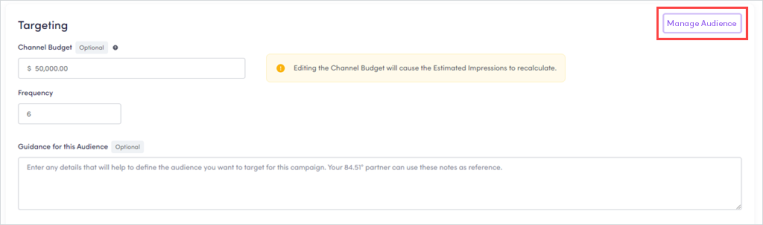
From there, you can perform all the same actions that you can from the Audience Library.
Troubleshooting
Here are some troubleshooting tips and tricks to help get your Audience Segments approved.
Not enough households
84.51° Prism enforces a minimum number of households for each channel to ensure the Campaign is set up for success.
If 84.51° Prism cannot identify enough households to meet the minimum, the audience request will fail.
Check applied Audience Segments
As you select, create, or add segments to your Campaign, check that all Audience Segments that you want to use are selected and applied to the channel.
After creating a new segment, you must apply it to the channel before submitting your targeting request or refreshing an existing request.
Consider segment priority
Custom Segments are mutually exclusive, so if you have these Audience Segments they could be prioritized over other segments. As such, a general recommendation is to put the most narrow Custom Segment as the top priority, and the broadest segment as the last priority.
|
Priority recommendations |
|||
|---|---|---|---|
|
|
|
|
Not enough UPCs
If a Custom Segment is targeting a small list of UPCs, that will result in less households.
While it can be beneficial to identify buyers of a small set of products currently being promoted, 84.51° Prism recommends that you also create a segment of broader brand buyers, including more relevant UPCs from your brand/product line to expand the number of identified households.
-
Promoted Product Buyers will identify a smaller set of households
-
Brand Product Buyers will identify a broader set of households
These Audience Segments can both be created within the same Campaign, but ensure that the narrow Promoted Product Buyers segment is prioritized above the general Brand Buyers segment.
Limited store distribution
When UPCs are added to a Custom Segment, you can view the Division Penetration. If the targeted UPCs have limited store distribution, the available pool of identified households will be smaller.
Ensure there is at least one (1) segment included in the Campaign that includes a large pool of UPCs (Commodity or Category Buyers) that are widely available throughout all Kroger divisions.
Related topics
Want to learn more about this topic? See these related topics:
Learn more
Explore other sections in the Learning Center to learn more about 84.51° Prism:
 Go to
Go to