Edit Yearly Plan
How-to | Last updated: 1/13/2026 | Learn how to edit your Yearly Plan
Each year, you and your Incentives Account Manager will plan your Incentives participation based on Kroger's ask for that year. On your Yearly Plan page, you can enter your contribution for each event throughout the year.
The Yearly Plan is open year-round for editing, but you must submit your plan to 84.51° by the requested deadline for the following year.
These submission dates can change from year to year. Your Incentives Account Manager will inform you of the dates for each year.
Access Yearly Plan
-
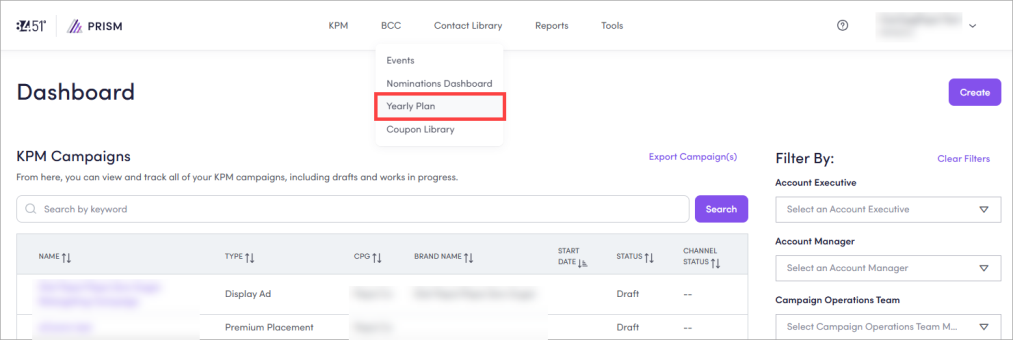
From 84.51° Prism, click BCC Best Customer Communications.
-
Select Yearly Plan.
Change display
Your Yearly Plan displays your planned circulation The number of households where the coupon is sent. to Kroger's ask for the Total Year as well as specific breakdowns for Loyalty Events (like Loyal Customer Mailer Reward and retain current buyers with hyper-relevant offers served via a combination of direct mail and digital channels. and MyMagazine Reward current buyers and acquire relevant category-buying households with personalized offers and equity advertising served via combination of direct mail and digital channels.).
The number on the left in each section is what you have entered into your plan (planned) while the number on the right is the expectation The Kroger Ask. For the Yearly Plan, this refers to the total number of coupons sent to Kroger households. The amount is set by Kroger and 84.51. It outlines what you can expect to contribute to BCC. (expected).
The metrics for the Yearly Plan are reported in dollars ($).
If you have more than one Client, you can Select a Client to see their Yearly Plan. To change the year displayed, click Change Year, then select the year.
View Loyalty Events Plan
You can find all your planned Loyalty Events and their metrics for the current year when you click Loyalty Events Plan.
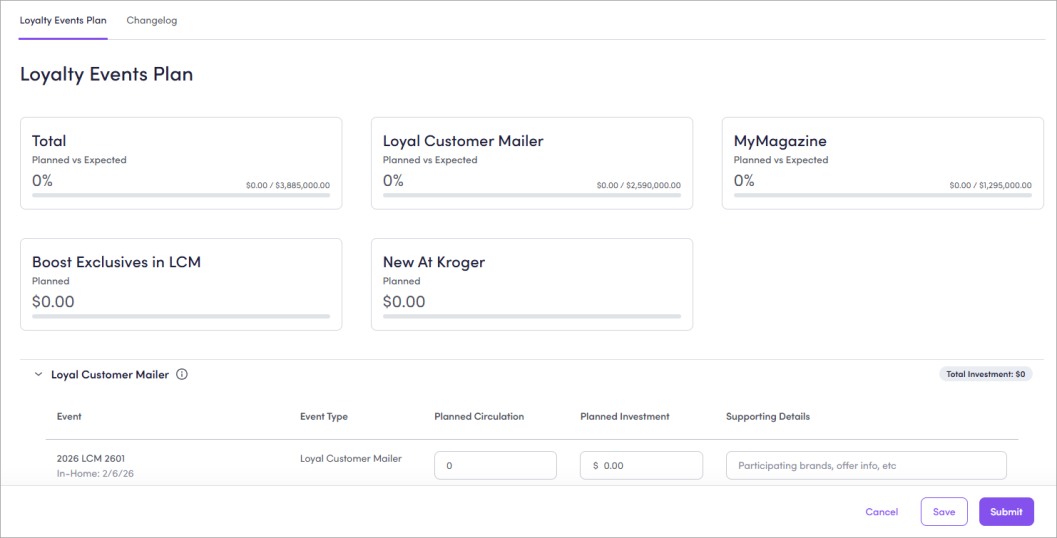
Click the arrow to see individual events (like LCM Loyal Customer Mailer, MyMagazine, Boost Exclusives in LCM Offers sent to Kroger Boost members through LCM events; Provides extra value and savings for Boost customers as an exclusive benefit to their paid membership., and New at Kroger Introduces new items to Kroger customers with offers targeting category-relevant householdss with highest propensity for trial.). You can also see the Event Type, Planned Sums total planned value from plan groups, aggregated based on the view or report in which it appears. Incudes everything but Boost. Circulation, Planned Investment, and Supporting Details for each event.

Enter Planned Circulation
Enter your Planned Circulation for each event. This entry will generate (in US dollars) the Planned Investment for the event and your overall expected contribution in the Yearly Plan.
Use this as a guide to spread your expected contribution out to each event you want to participate in throughout the year.
The Yearly Plan dashboard is for planning purposes only. You still have to create nominations for each event.
To learn more about Loyalty Events, see Loyalty Events and Incentives.
Submit plan
The Yearly Plan is open year-round for editing, but you must submit your plan to 84.51° by the requested deadline for the following year.
These submission dates can change from year to year. Your Incentives Account Manager will inform you of the dates for each year.
-
Enter all the details for your Loyalty Events.
-
Click Submit.
Update plan
You can update your plan at any time throughout the year.
-
Enter any changes you have to your Loyalty Events Plan.
-
Click Update to save your progress.
These updates are visible to your Incentives Account Manager
Related topics
Want to learn more about this topic? See these related topics:
Learn more
Explore other sections in the Learning Center to learn more about 84.51° Prism:
 Go to
Go to